
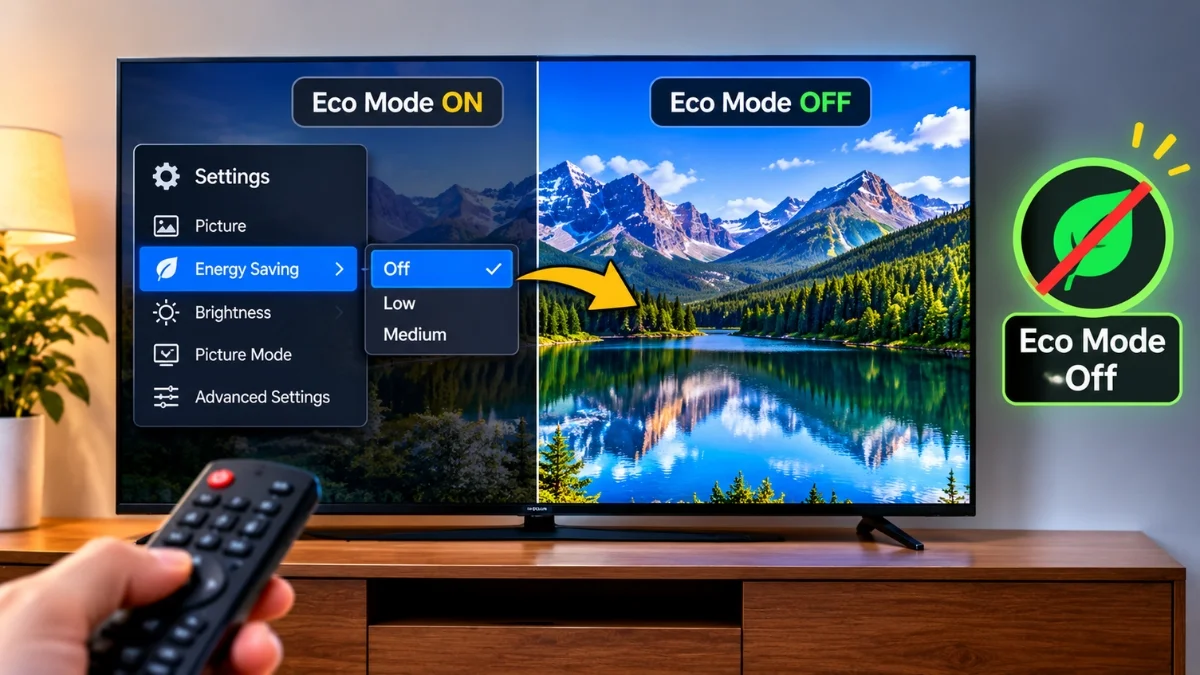
My TV Looked Way Too Dark for Months, and the Fix Took 10 Seconds
Eco mode. It sits on by default on almost every TV sold, it watches your room with a light sensor, and it dims the backlight below whatever brightness you set in the picture menu. Turning it off takes about ten seconds and the picture brightens instantly. If that alone doesn’t fix it, there are four more settings doing the same job, and this covers all of them.
Key takeaways
- Eco mode overrides your manual brightness setting. Raising brightness while it’s on does very little.
- It’s on by default because energy ratings are measured in the TV’s out-of-box state, so manufacturers ship the dimmest configuration that still looks acceptable in a showroom.
- Menu paths differ by brand and the setting has at least six different names.
- Eco mode is the most common cause but not the only one. Picture mode, HDR tone mapping, the light sensor, and local dimming all darken a picture in different ways.
- Filmmaker Mode looks darker at first. That’s usually correct, not a fault.
How I missed it for months
I bought a decent mid-range set and spent the first few weeks assuming I’d bought a dud panel. Dark scenes were mud. Anything shot at night was a guessing game. HDR films, the whole reason I’d upgraded, looked worse than the SDR versions.
So I did what everyone does. I went into the picture menu and pushed Brightness up. It helped a bit. I pushed Backlight up. Also a bit. I ended up with a picture that was brighter but flat and slightly washed out, which is what happens when you crank brightness to compensate for something else pulling it down.
Then I was looking for a different setting entirely, in a menu I’d never opened, and found Eco Solution sitting there switched on.
Turned it off. The picture changed while I was still looking at the menu.
Months of squinting. One toggle.
What eco mode actually does
It’s not a brightness limiter in the way you’d assume. It’s an active system.
Your TV has an ambient light sensor, usually a small dot on the lower bezel. Eco mode reads that sensor and continuously adjusts the backlight to what it decides the room needs. In a dim room, it decides you need very little.
The important part: it works below your manual setting. You set Backlight to 80, eco mode decides the room only justifies 45, and you get 45. The number in the menu says 80. The panel is doing 45.
That’s why turning brightness up doesn’t fix it and why the problem is so hard to diagnose. Every number you can see says the TV should be bright. Something you can’t see disagrees.
The dimming is worst exactly where you’d notice it most. Dark scenes, shadow detail, and HDR content all depend on the backlight having headroom. Colours go flat, contrast drops, and detail in shadows disappears entirely.
Why it ships switched on
This is the part that isn’t in most guides, and it explains a lot.
Energy efficiency ratings for televisions are measured in the set’s default, out-of-the-box configuration. Not in the mode you’ll actually use it in. The default one.
So there’s a direct commercial incentive to make the default state as power-efficient as possible, because that’s the number that goes on the label and into the regulatory filing. A dimmer default draws less power and rates better.
Manufacturers aren’t hiding anything. Eco mode is documented, it’s in the manual, and it genuinely does reduce your electricity use. It’s just that the setting optimised for a compliance test is not the setting optimised for watching a film, and the TV ships configured for the test.
Once you know that, a lot of default TV behaviour makes more sense. Out of the box, most sets are configured for a bright shop floor and a good energy label. Neither is your living room.
Where the setting lives, by brand
The name changes constantly. Look for Eco, Energy Saving, Power Saving, Brightness Optimisation, Ambient Light Optimisation, or Light Sensor.
| Brand | Path |
| Samsung | Settings > General > Power and Energy Saving > Eco Solution |
| LG | Settings > Picture > Energy Saving (also check AI Brightness) |
| Sony | Settings > Display & Sound > Picture > Power Saving |
| Roku TV | Settings > System > Power > Power Saving |
| TCL | Usually under System > Power, or Picture > Advanced depending on OS |
| Hisense | Usually under System > Power or Picture Settings > Advanced |
| Vizio | Usually under System > Power Mode, or Picture > More Picture |
On TCL, Hisense and Vizio the location depends on whether the set runs Google TV, Roku, or the manufacturer’s own OS. Check both the picture menu and the system power menu.
Turn it off, don’t set it to Low. Low still overrides your manual setting, just less.
If it’s still dark, check these four
Eco mode fixes it for most people. If yours is still dim, work through these in order.
1. Picture mode. If you’re in Eco, Standard, or an Energy Saving preset, that’s a second layer of the same problem. Switch to Cinema, Movie, or Filmmaker Mode.
Fair warning, and this trips people up: Filmmaker Mode often looks darker and warmer at first. That’s not a fault. It disables the artificial sharpening, motion smoothing and blue-shifted colour temperature that make a picture pop in a shop, and it targets the standard the content was actually graded against. Give it a few days. Nearly everyone who sticks with it stops noticing the difference and then can’t go back.
2. The light sensor itself. Some sets keep the sensor active even after eco mode is off, usually under a separate toggle called Light Sensor, Adaptive Brightness, or Ambient Optimisation. Turn it off too. And check nothing is physically blocking the sensor on the lower bezel. A soundbar sitting too high or a sensor covered in dust will convince the TV it’s in a dark cave.
3. HDR tone mapping. If the problem is only on HDR content, that’s a different issue with a different cause.
HDR films are graded against a reference display far brighter than most consumer TVs. Your set has to compress that range down to what it can physically produce, which is tone mapping. Done badly, or with the wrong setting, you get crushed shadows and a dim overall image.
Look for HDR Tone Mapping, Dynamic Tone Mapping, or HGiG. On LG sets, switching Dynamic Tone Mapping on often helps considerably. Some sets also have a separate HDR brightness or HDR Eco setting hiding in a submenu, and yes, it’s usually on.
4. Local dimming. On LED sets, this controls backlight zones independently. Set too aggressively it crushes dark areas; set to Off you lose contrast. Medium is usually right. On OLED this doesn’t apply, since each pixel handles its own light.
The quick diagnostic
Faster than working through everything:
| Symptom | Most likely cause |
| Everything is dark, all sources | Eco mode |
| Gets darker when the room lights go off | Light sensor still active |
| Only HDR looks dark | Tone mapping |
| Only dark scenes are crushed | Local dimming too aggressive |
| Dim and also flat or washed out | You raised brightness to compensate for eco mode |
| Dark only on one input | Input-specific picture settings |
That last row catches people. Most TVs store picture settings per input. Fix HDMI 1 and HDMI 2 is still wrong. Some sets have a “apply to all inputs” option, usually buried in a reset submenu.
What to expect on your power bill
Since energy saving is the stated point, worth being straight about the trade-off.
Turning eco mode off does increase power draw. A typical mid-size LED TV runs somewhere in the region of 60 to 150 watts depending on size and brightness, and disabling eco mode pushes you toward the upper end of that range.
Watching four hours a day, that’s a difference of maybe a few kilowatt-hours a month. On most tariffs, small change.
You spent real money on a display. Running it at a fraction of its output to save a couple of pounds a month is a bad trade. If you want the efficiency, get it back by turning the TV off properly rather than leaving it in standby, and by dropping the backlight manually in a dark room, where you genuinely don’t need full output and can control it yourself.
What I’d do on a new TV, day one
Ten minutes, once, and then never think about it again:
- Turn off eco mode, energy saving, and any ambient light sensor.
- Set picture mode to Filmmaker or Cinema for every input.
- Turn off motion smoothing, unless you’re watching sport.
- Set local dimming to Medium on an LED set.
- Set backlight to taste for your room, now that the number means something.
- Apply to all inputs, or repeat per input.
- Watch something you know well and check whether shadow detail is there.
That last step is the one people skip. Pick a film you’ve seen a dozen times with a dark scene you remember. If you can see into the shadows, you’re done.